

 Français
 Deutsch
 Español
 Italiano
 Nederlands
 Polski
















There are no more items in your cart
5 tips for your GUIRLED voice-controlled fairy lights
Guirled shares 5 amazing tips for making your Voice Control fairy lights your own: scheduled night light, gentle wake-up, weather station and more.
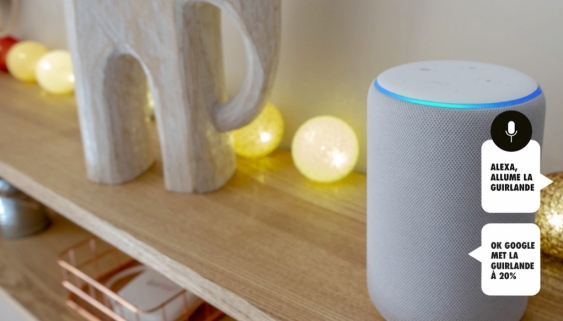
Almost everyone now knows that fairy lights can be connected to a digital assistant such as Google Home or Amazon Alexa, and that you can give them orders like switching on or off.
But what if you could do things you haven't even imagined?
GUIRLED put its engineers on the case to dig out features that are useful for your lighting, for your environmental concerns, or for more offbeat uses...
This 5-tip TUTORIAL uses the Smartlife app, but you can do the same things with the Amazon Alexa or Google Home apps.

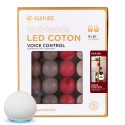
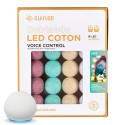
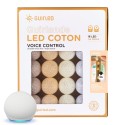
As a reminder, Guirled Voice Control fairy lights pack in all the quality of our Classic fairy lights, plus a Wi-Fi module that talks to a 2.4 GHz internet router, then to a voice assistant or a smartphone. This lets you control your fairy lights remotely, by voice or in the dedicated app (SmartLife). You can find the installation guide by clicking here.
1: A gentle wake-up with light
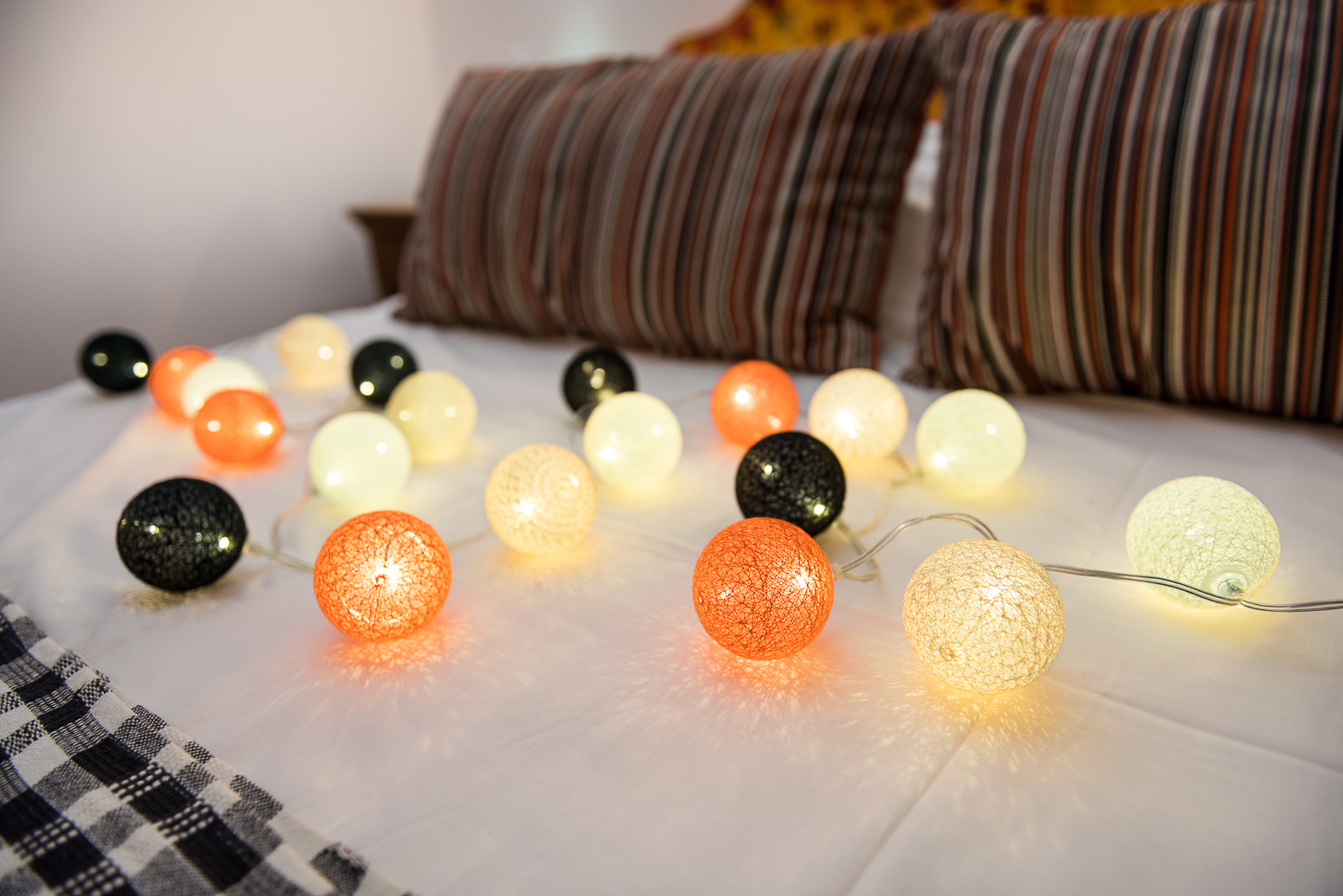
With GUIRLED Voice Control fairy lights and one of the apps mentioned, you can set up a "sunrise" style alarm, and it's very easy.
Do you usually wake up at around 7.15 am?
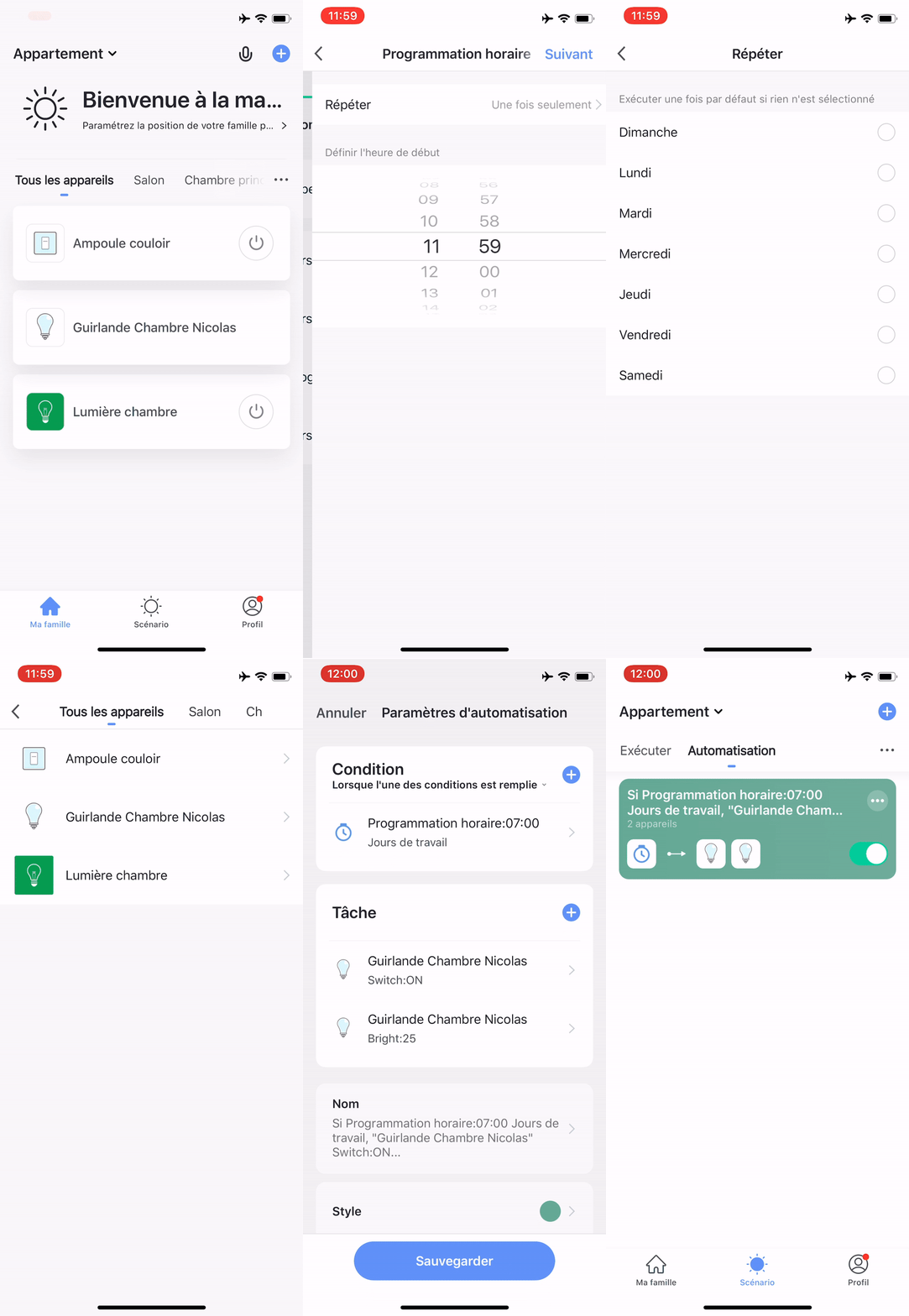
- Open your Smartlife app and tap "Scene" then "+".
- "Schedule": "7.00 am", tap repeat, then choose your working days.
- Go to "Run the device", "Your fairy lights", set the "switch" to ON and "bright" to "25%", then "Save".
- Then repeat these steps, changing the time to "7.05 am" and raising "bright" to 50%, until you reach 100% brightness.
100% bright = your wake-up time
Your fairy lights will now come on at 25% at 7.00 am and reach 100% brightness at 7.15 am for a very gentle wake-up.
2: Turn your fairy lights into a weather station
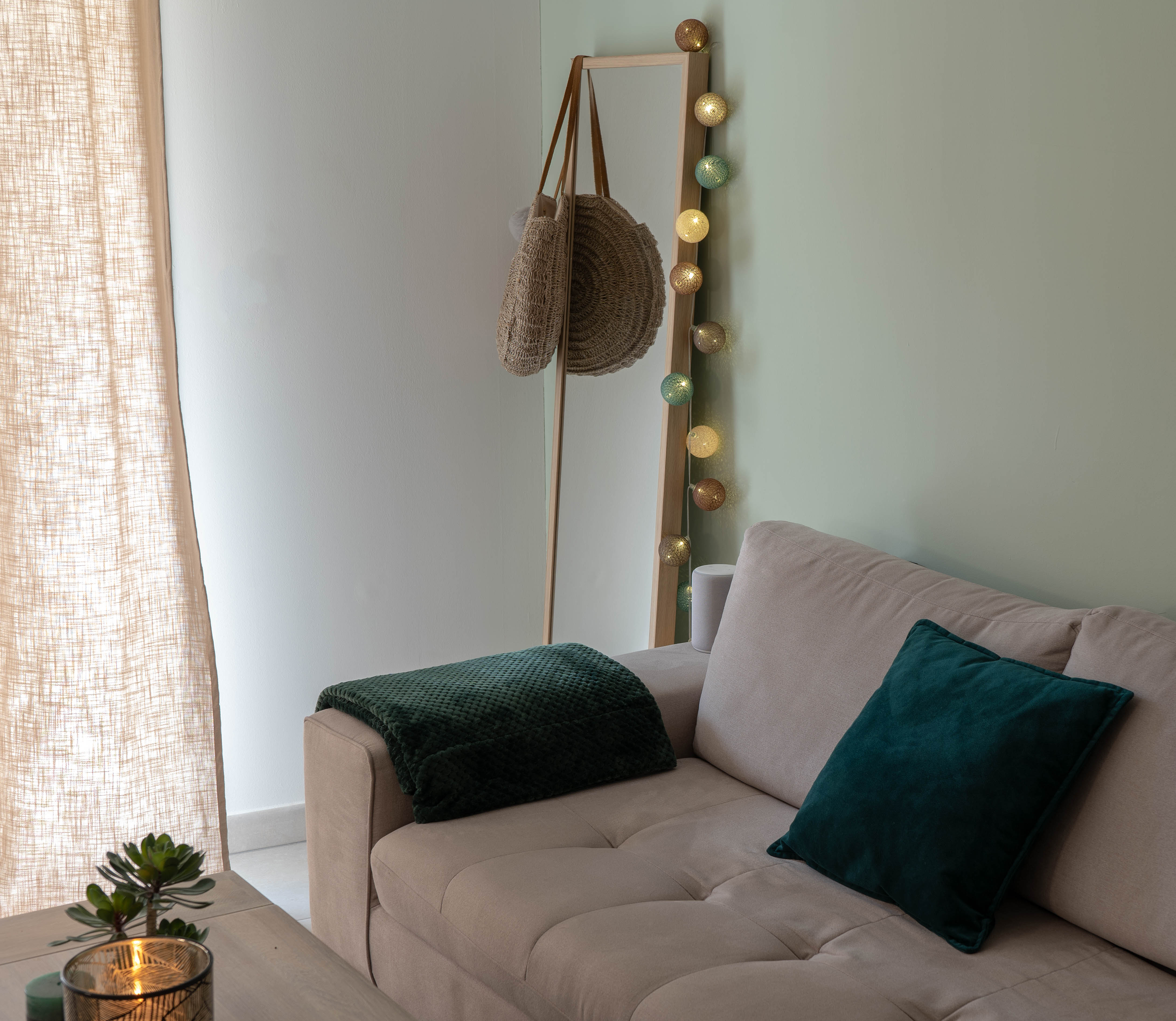
If you're the type to leave your fairy lights on all the time, they could well double as a weather station.
In this example we are going to add a few functions to your fairy lights:
- Fine weather = light at 100%
- Bad weather/rain/cloud = dim light at 25%
or
- above 20 degrees = 100% brightness
- below 20 degrees = 50% brightness
- below 10 degrees = 25% brightness
(Of course, you can do the opposite if you feel you need more light on an overcast day than on a sunny one.)
- To do this, still in Smartlife, "Scene" then "+"
- Tap "When weather changes".
- Choose "Weather" then "Sunny". The app will set the city automatically from your location; if it doesn't, tap "current city" and enter it by hand.
- Then tap "Run the device", "your fairy lights", set the "switch" to ON and "bright" to "100%".
You can now save.
Next, repeat the same operation twice, replacing "Sunny" with "Rainy" or "Cloudy" and setting the brightness (bright) to 25%.
And there you go: thanks to the link between your smartphone and your fairy lights, you will always know what the weather is doing outside.
Follow the same steps replacing "Weather" with "Temperature", and it is the outside temperature that will be shown.
3: Smart fairy lights that only come on when you are at home
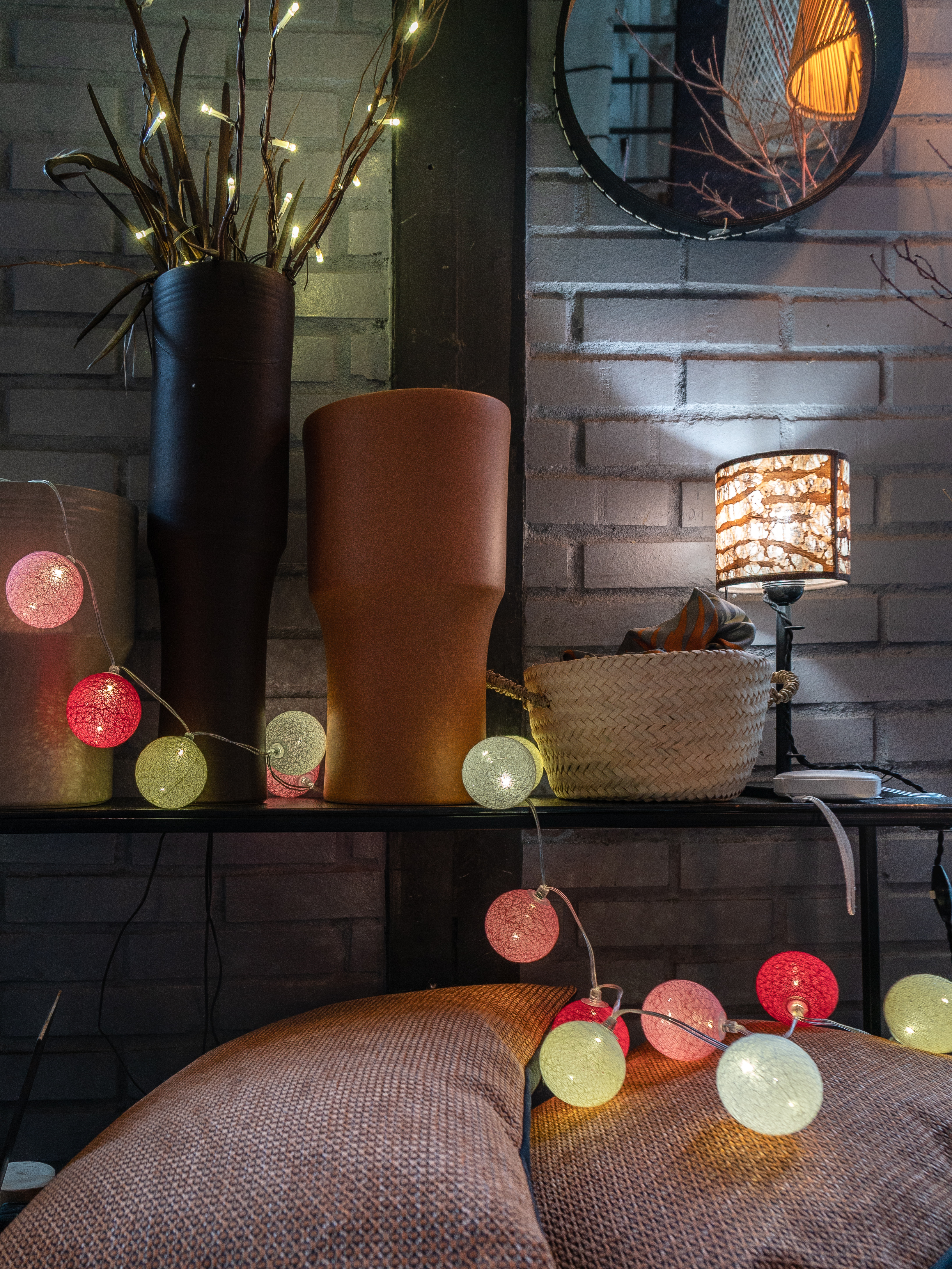
Worried you'll forget to switch off your fairy lights when you leave home, and want them to come on when you reach your front door?
Here is what you will get:
- The fairy lights switch on when you get close to home
- The fairy lights switch off when you leave home
- In Smartlife, "Scene" then "When location changes", "Arrive at a place", then set your address on the map, zooming in as far as you can until you reach a radius of 91 metres.
- Once the place is chosen, tap "Run the device", "your fairy lights", then "Switch" to ON and "Bright" to whatever you like, then save.
- Finally, repeat the operation, this time choosing "Leave a place" and setting the "Switch" to "OFF".
4: Set up an automatic night light
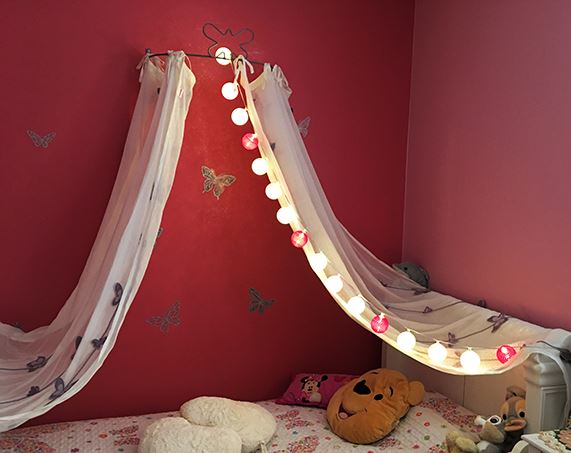
Would you like the fairy lights to come on automatically when you put your child to bed and go off when it's time to wake them?
For this example we'll go with bedtime at 9 pm and wake-up at 7.30 am.
- In Smartlife, tap your fairy lights, then "Schedule" below the bulb, tap "Add schedule" and set 9 pm.
- In the "Repeat" tab, choose every day of the week.
- Tap switch, then ON, then Save
- Repeat the operation choosing 8 am (30 minutes after wake-up, to be sure the fairy lights don't go off while your child is still asleep), then switch OFF and save.
Your fairy lights will now come on automatically at 9 pm and go off at 8 am.
5: Switch on several sets at once

If you want to switch several sets of fairy lights on or off in one go, that is perfectly possible.
Let's say you have 3 sets in your living room and want to switch them all on at the same time.
- In Smartlife, tap your fairy lights, then the pencil at the top left to "edit".
- Tap "Create group" and select the sets you want to switch on or off together.
- Rename the group "Living room lights". A group will then be created automatically on the Smartlife home page, and you can control the brightness and the ON/OFF of all the sets from there.
With these 5 tips for using smart voice-controlled fairy lights, we hope to make your everyday life more practical, more useful and above all easier!
If you would like to find out more about GUIRLED Voice Control fairy lights, we recommend reading the reviews (in French) by Les Alexiens and Domotic-Techno-Seb27.
Note that the apps that work with our Voice Control fairy lights are available on Android and iOS.